Building SceneFlow: The Intelligent Video Cutter

SceneFlow isn't just a video cutter, it's an intelligent editor. By combining signal processing with Multimodal AI, it finds the perfect cut points, ensuring your videos never end with awkward freezes, mid-sentence chops, or blinking eyes.
If you've ever worked with AI-generated videos, you know the problem. The content is great, but the endings are... weird. The avatar freezes, stares blankly into the soul of the viewer, or cuts off mid-breath.
Notice the awkward movement of the subject at the end of this AI-generated video
To make these videos production-ready, you have to manually trim that awkward tail. For one video, it's fine. For 1,000 personalized outreach videos? It's a nightmare.
We wanted to automate this. But simple tools like ffmpeg or basic silence detectors aren't enough. They don't "see" the video. They don't know if an avatar's face looks unnatural.
So we built SceneFlow.
Why did we build SceneFlow
It started with a client project. We were working with AI-generated avatar videos, hundreds of them for personalized outreach campaigns. The content itself was impressive. The avatars looked natural, the scripts were on point, and the lip-sync was nearly flawless.
But there was one consistent problem: the endings were terrible.
Every video would finish with the avatar in some awkward state, mid-breath, eyes half-closed, mouth slightly open, or frozen in an unnatural pose. For a single video, you'd just trim it manually and move on. But when you're processing hundreds of videos that need to be stitched together into sequences, those bad endings become a real problem. The transitions between clips looked jarring and unprofessional.
Actual Cut Frame
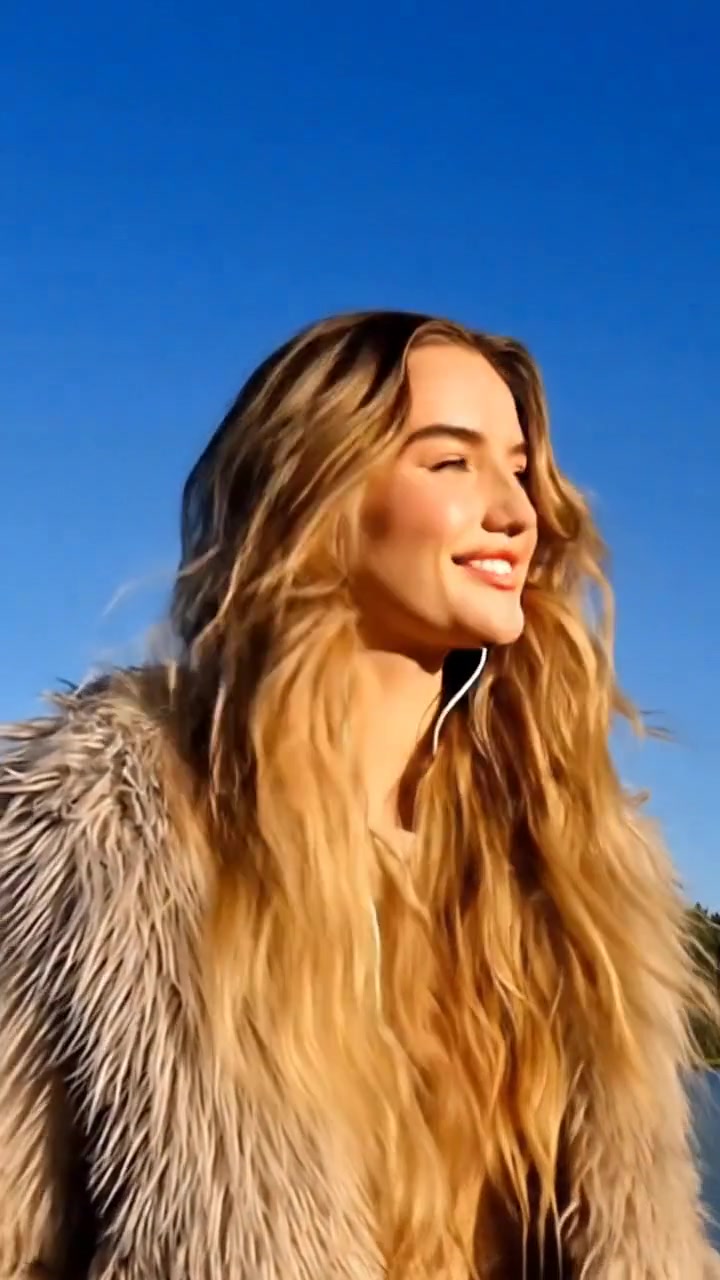
Awkward pose, eyes half-closed
Expected Cut Frame
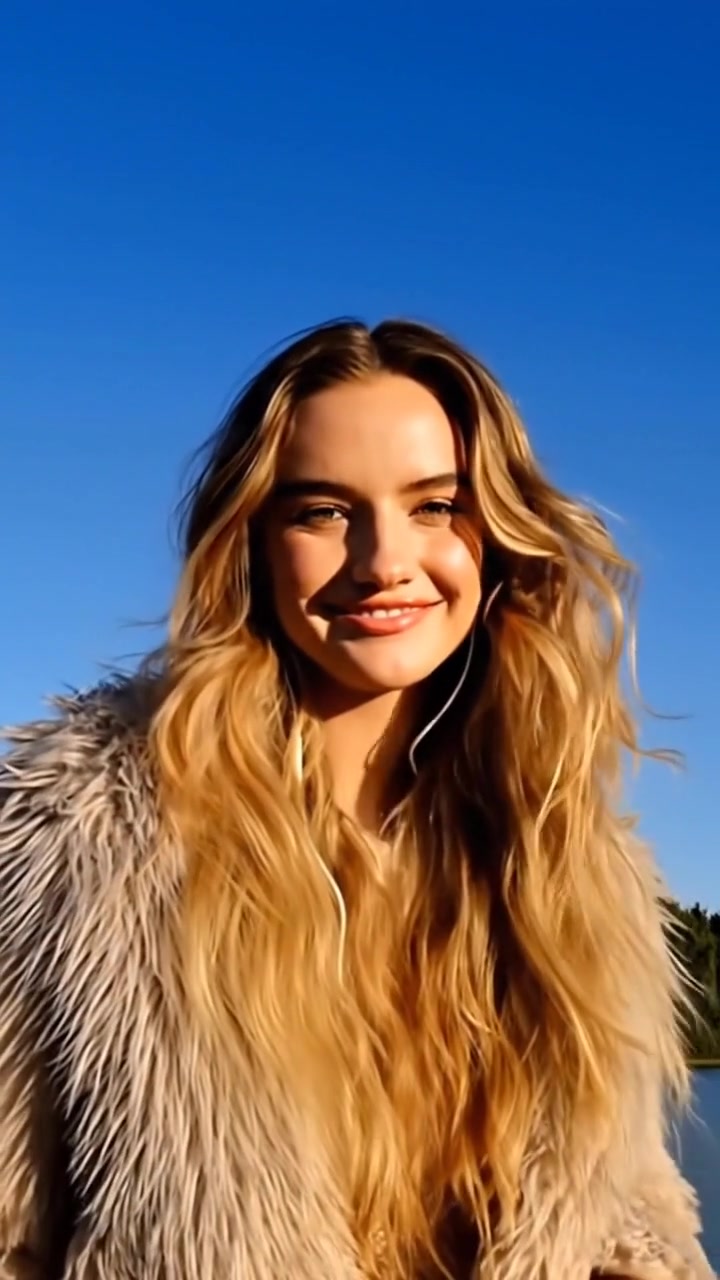
Natural expression, proper ending
We searched for existing tools. Surely someone had solved this, right?
We tried silence detectors, they'd cut during pauses, but the avatar might still be moving. We experimented with motion-based cutters, they'd find still moments, but the face might look weird. Nothing understood the full picture: audio and video and facial expressions all at once.
So we built our own solution.
The Core Intuition: What Makes a "Good" Cut?
Before writing any code, we asked ourselves a simple question: What does a human editor actually look for when trimming a video?
Think about it. When you manually trim a video, you don't just look at the waveform. You watch the person. You wait for them to finish their sentence. You check if their eyes are open. You make sure they're not mid-gesture. You look for that brief moment of stillness where everything feels... complete.
That's the intuition. A good cut happens when multiple signals align: the speaker has stopped talking, their face is composed, their body is still, and visually, the frame looks intentional rather than accidental.
The problem is that these signals don't always agree. The audio might be silent, but the speaker is still moving. The face might look great, but they're mid-word. Traditional tools optimize for one signal and ignore the rest.
SceneFlow's approach is different: treat each signal as a vote, and find the moment where the most votes align.
The Four Pillars of a Clean Cut
We identified four signals that together define a "natural" cut point:
1. Speech Boundaries
Are they still talking? We use Silero VAD (Voice Activity Detection) to detect exactly when speech ends. It gives us millisecond-accurate timestamps without needing full transcription. However, the VAD timestamps are not always very accurate, which we'll discuss later in this blog.
2. Motion Stillness
Are they moving? We use optical flow to track pixel movement between frames. When the motion drops to the lowest 25%, we've found a moment of stillness.
3. Facial Composure
Do they look natural? Using InsightFace, we detect blinks (EAR), mouth openness (MAR), and head angle. If someone's mid-blink or has their mouth open, it's not a good frame.
4. Visual Stability
Is there a scene change? We detect hard cuts, fades, and dissolves. Cutting right before a transition looks accidental; cutting after looks intentional.
Handling Different Scenarios
SceneFlow is optimized for two primary content types:
Talking Head / Avatar Videos — Close-up shots with one speaker, minimal camera movement. Facial analysis dominates here. We're strict about mouth closure, eye state, and subtle expressions. Motion thresholds are tight because any movement is noticeable in a close-up.
Podcasts & Interviews — Similar to talking heads, but with wider frames and more natural speech patterns. We weight speech boundaries heavily and allow slightly more tolerance for motion.
How SceneFlow Implements This
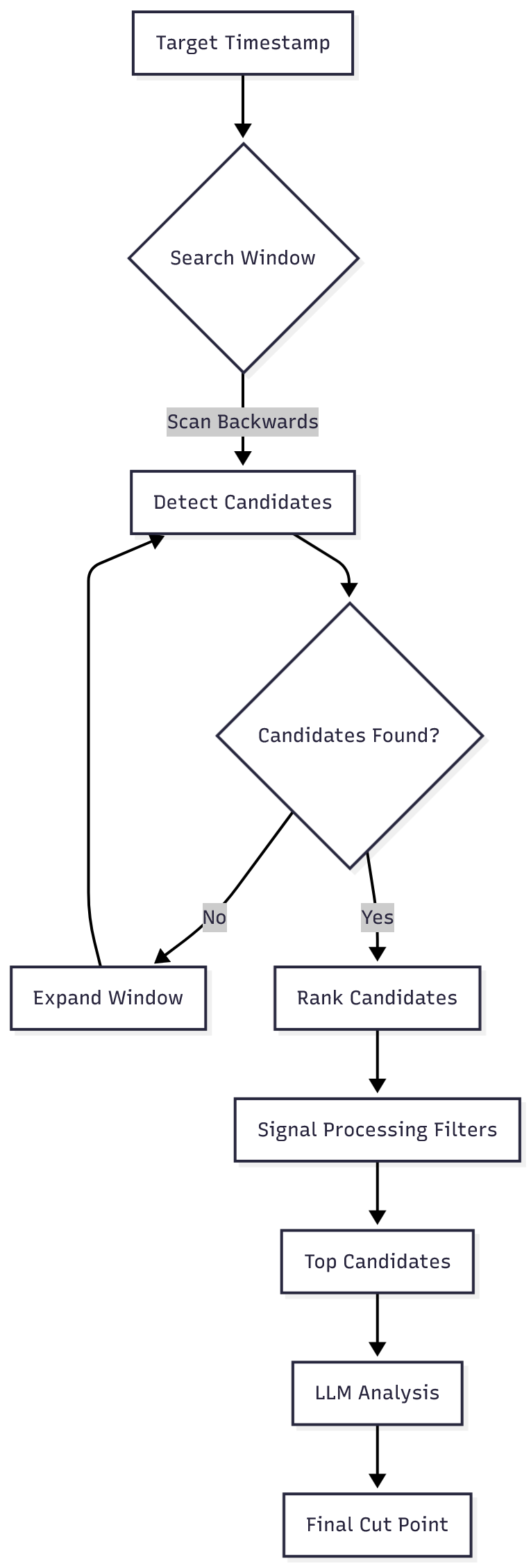
Here's the high-level flow:
Step 1: Find the speech end — When you provide a video, we first run Silero VAD to detect the end timestamp of the last speech segment. This gives us a starting point for analysis.
Step 2: Analyze frames visually — From that timestamp, we analyze each frame for:
- EAR (Eye Aspect Ratio) — Are they blinking?
- MAR (Mouth Aspect Ratio) — Is their mouth open?
- Motion — Is the subject in motion?
- Stability — Is the frame stable?
Step 3: Score and rank — Each frame gets a composite score based on these metrics. We then rank all frames from 1 to n, where rank 1 is the best candidate and rank n is the worst.
Step 4: Select the best — The highest-ranked frame becomes the cut point.
The ranking prioritizes frames where the speaker has finished talking, isn't blinking, has their mouth closed, and is relatively still. If no perfect frame exists, we pick the best available.
Real-World Challenges We Faced
Building SceneFlow wasn't just about wiring up APIs. We hit some genuinely hard problems.
The VAD Timestamp Inaccuracy Problem
Silero VAD's end timestamps are always a few frames too late. This means we're analyzing extra frames where the speaker is already quiet, potentially missing the perfect cut point.
Our Fix: Energy-Based Refinement
We use VAD as a rough guide, then look backwards for a sudden energy drop (≥8 dB) in the audio. This drop marks the actual speech end, giving us frame-level precision and ensuring we never miss that ideal cut moment.
The "Mid-Gesture" Problem
Optical flow is great at detecting large motion, but bad at detecting subtle gestures. A speaker might be perfectly still from the waist up, but their hand is moving off-screen. Early versions of SceneFlow would happily cut during these moments, making the final frame look awkward.
We fixed this by implementing region-of-interest (ROI) weighting. The algorithm gives more weight to motion near the speaker's face and less weight to the edges of the frame. Now it can distinguish between "speaker is gesturing" and "a car drove by in the background."
When to Use SceneFlow
SceneFlow is designed for high-quality, automated video workflows. It excels in situations where precision and polish matter.
- AI Avatar Videos: Perfect for cleaning up the awkward starts and stops of generated content from platforms like HeyGen or Synthesia.
- Webinar & Podcast Clips: Extracting short, punchy clips from long-form content without cutting off speakers mid-sentence.
See it in Action
Here's a comparison of a raw AI-generated video versus one processed by SceneFlow. Notice how the "After" clip ends naturally without the awkward freeze.
Before (Raw)
After (SceneFlow)
Before (Raw)
After (SceneFlow)
Before (Raw)
After (SceneFlow)
How to Use It
SceneFlow is built as a powerful CLI tool that fits right into your existing pipelines.
Check out the project on GitHub: https://github.com/vertexcover-io/sceneflow
Installation
Install SceneFlow via pip:
pip install sceneflow
Basic Usage
Find the optimal cut point in your video:
# Find the best cut point timestamp
sceneflow input.mp4

# Save the trimmed video (requires ffmpeg)
sceneflow input.mp4 --output cut_video.mp4

# Get top 5 candidate cut points with scores
sceneflow input.mp4 --top-n 5
Conclusion
SceneFlow works exceptionally well with AI-generated podcasts and talking head videos, delivering clean, professional cuts every time.
Our goal is to expand this into a comprehensive rough-cut tool for real-world podcasts, making it the go-to solution for automated video editing.
The code is open source. Give it a spin and stop scrubbing through timelines manually.